SportsPress - Updating Events

In the last video, I showed you how to add an event to your new website.
So, how did it go? Did you kick some serious butt or was it a close game?
Once the results are in, SportsPress will automatically bring your league tables and player lists up to speed.
So, let’s go and add some results!
So let’s say that we just finished our game and we want to update this event. We’ll need to go in and edit the event, and add some statistics to our player performance table.
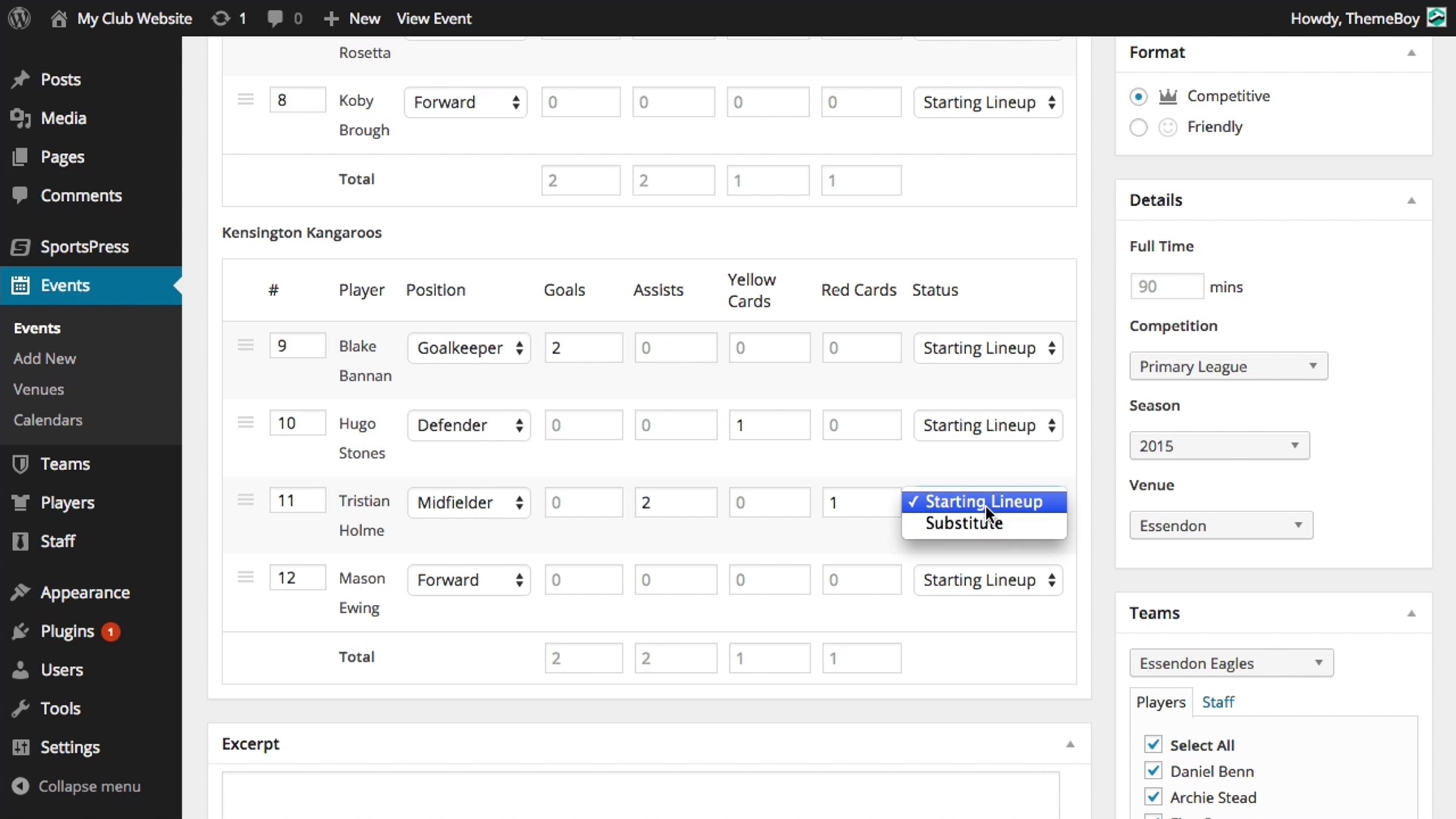
Let’s add a couple goals, assists, yellow card, and a red card and we’ll do the same for the away team.
We’ll say that this guy was a substitute, so we’ll change his status from Starting Lineup to Substitute.
Once we’ve added our results, let’s update the event and go see what it looks like.
So not much has changed here, but we’ll notice that this player is in parentheses. This is because this player was a substitute.
So let’s go back and edit the event to display our player performance columns.
To display these columns that we added values to, we’ll need to check all of the check boxes and click update.
Now we can see the player performance columns and the values that we added. Great.
Let’s say that we want to change the positions for some of our players. We can go back to edit the event, and change the position for a player by selecting it from the drop down menu.
A player’s position will automatically default to the position that was selected in their profile, but if they happen to play a different position than usual, we can always change it from here.
We can also change their player number per event which will also default to what was entered in their profile page.
If we scroll to the very top, we can enter the Event Results which are very similar to the player performance section where we’ll need to check these boxes to display them on the front-end of our website.
If we leave these unchecked, only the team names will be displayed in the Results section.
Let’s go ahead and check these boxes, 1st half, 2nd half and goals, and we’ll hide the outcomes column. Keep in mind that anything we enter in the Results section, even if we don’t check these boxes to display it, will be used in our equation calculations.
Once the event has passed, we’ll notice that the Event section where it previously said “Scheduled” will now say “Published.” In SportsPress, scheduled and published events will be displayed on our website so don’t worry about scheduled events not showing up.
Get started for free
24/7 customer support
Our customer support team is available to help 24/7. Enterprise members also receive dedicated account managers and a guaranteed uptime SLA.
© 2026 Vimeo.com, Inc. All rights reserved.
TermsPrivacyYour Privacy ChoicesU.S State PrivacyCopyrightCookies