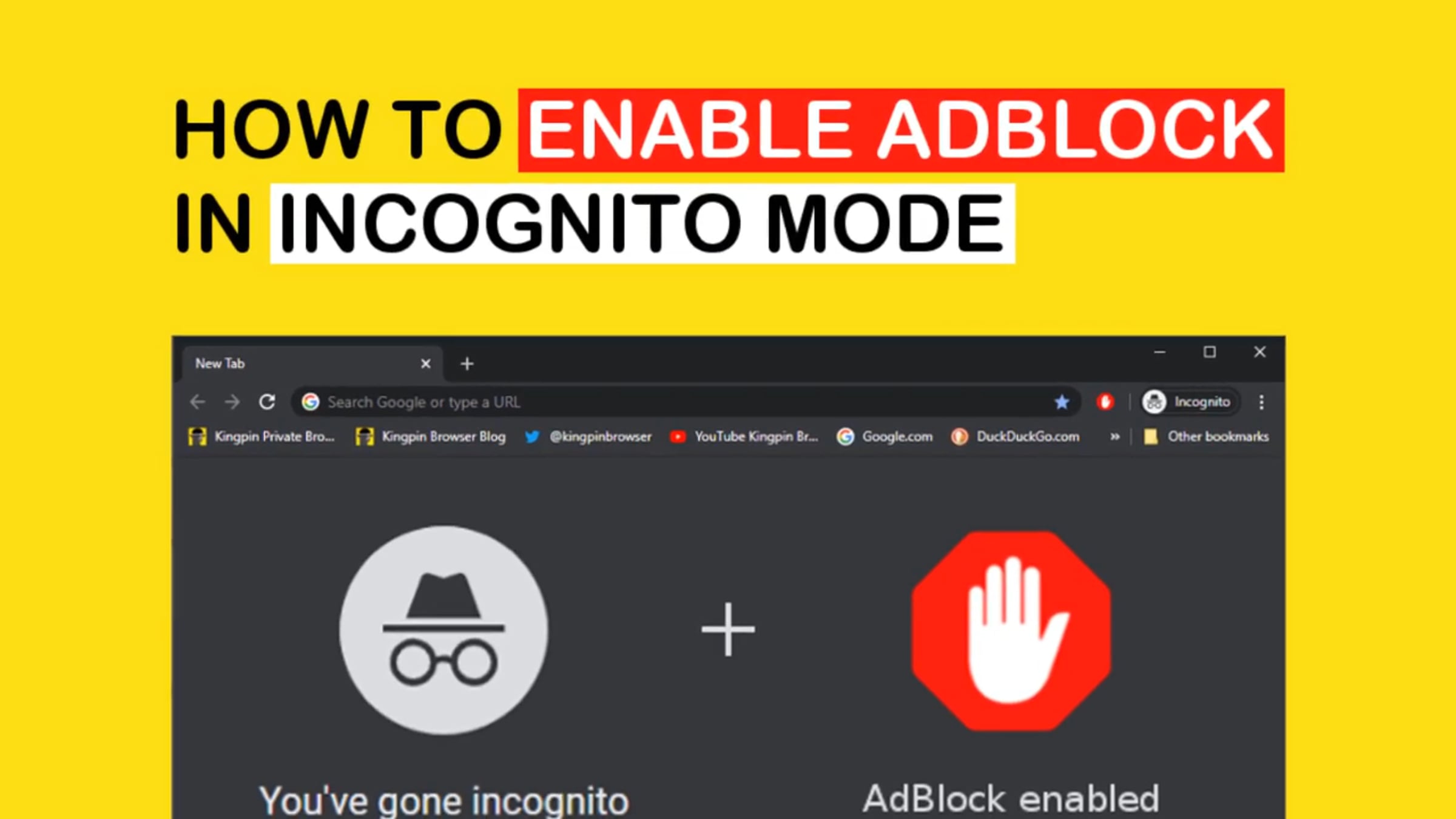
How to enable AdBlock in incognito mode (Chrome, Firefox, Edge)

More information: https://kingpinbrowser.com/blog/enable-adblock-incognito/
Ad-blockers and other extensions do not work in incognito mode - they are disabled by default. This tutorial shows how to enable AdBlock add-ons in incognito Chrome, private browsing window of Firefox, and Edge browser.
Here are the steps to enable Adblock (or any other extension) in Google Chrome incognito mode:
1. In the address bar, type chrome://extensions.
2. Find the Adblock extension.
3. Under the extension name, you’ll find Details. This will open up a settings page related to that extension.
4. Scroll down and there will be a toggle switch that says Allow in Incognito.
5. Turn on that toggle switch.
If you’re using Mozilla Firefox, these are the steps to allow extensions in private mode:
1. Click on the hamburger icon on Firefox and then go to Add-ons. Select Extensions.
2. Click on Adblock or any other extension you want to run in a private window.
3. This will open a page that will show the settings of that extension.
4. Go to Run in Private Window and select Allow.
If you’re on Microsoft Edge, here’s how you can enable Adblock extension on a private window.
1. Click the three dots (…) button on Edge and click on Extensions.
2. Go to the Adblock extension and click on the cog Settings.
3. From the given options, click on Allow for inPrivate browsing.
✏️ Check out Kingpin browser blog here: https://kingpinbrowser.com/blog/
� Connect with Kingpin team on Twitter: https://twitter.com/kingpinbrowser
Get started for free
24/7 customer support
Our customer support team is available to help 24/7. Enterprise members also receive dedicated account managers and a guaranteed uptime SLA.
© 2026 Vimeo.com, Inc. All rights reserved.
TermsPrivacyYour Privacy ChoicesU.S State PrivacyCopyrightCookies