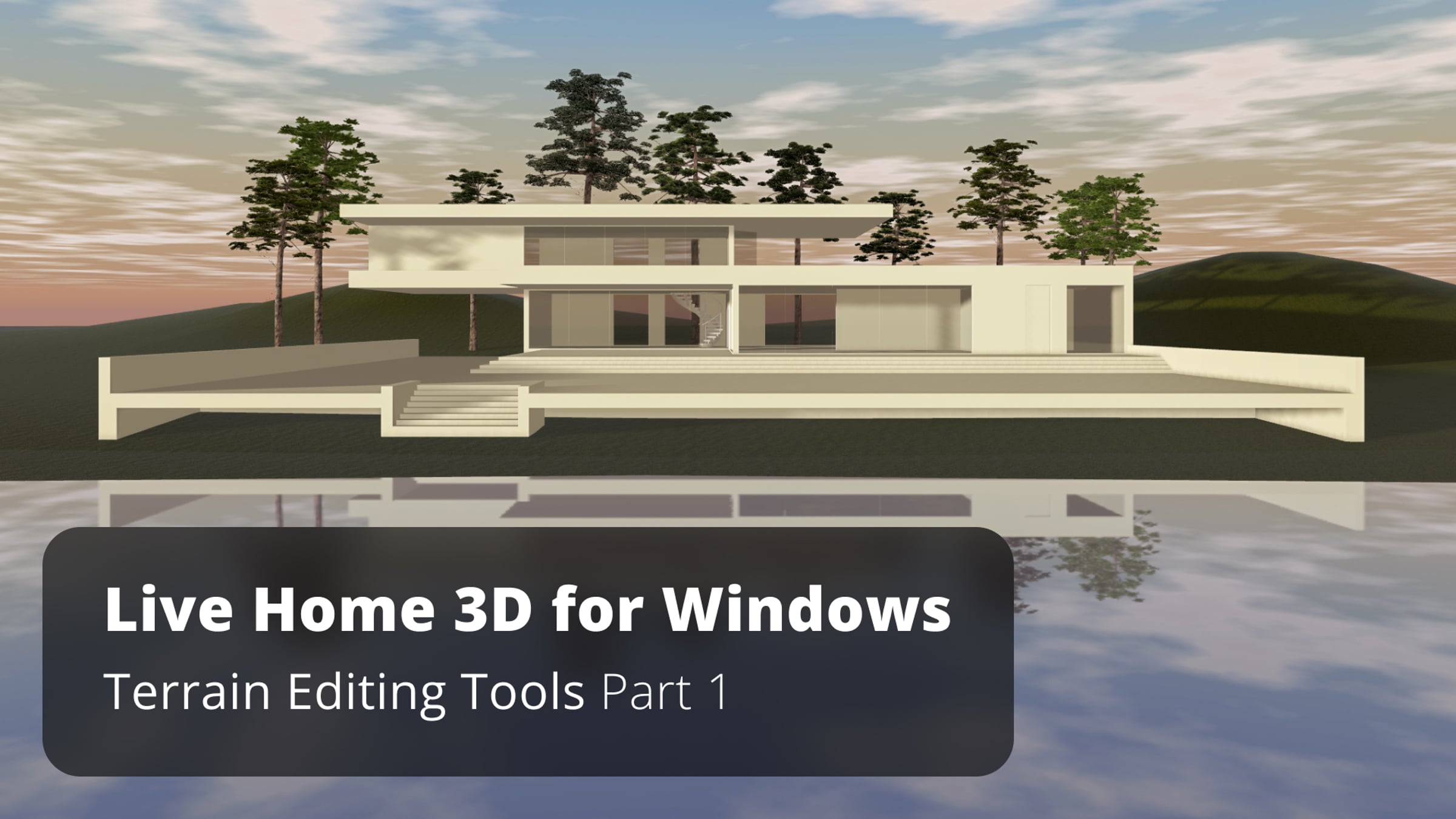
Terrain Editing Tools Part 1 - Live Home 3D for Windows Tutorial

In this video, you will learn how to use terrain editing tools available with the Pro Features of the app.
Terrain editing techniques are the same for iOS, Windows, and macOS versions of Live Home 3D.
Here we use a two-story house project, but you can use terrain tools for any house project you are working with. All the terrain work is usually done in the 2D view, while the 3D view is used mostly necessary to preview the result. Now let’s switch to the 2D view mode.
The terrain editing tools can be found under the “Site” menu. As you can see, only Terrain Rectangular and Terrain Polygonal tools are active at the moment, let’s see what they do and how the rest of the tools can be activated. Once selected, the Terrain Rectangular tool, the warning dialog appears, saying that one needs to switch to the Site level to edit the landscape around the house. Let’s switch to the Site level and, as you can see, the house plan view changes to outline, and now terrain elements can be added.
Site-level is the new level type that appeared in version 4. As you may already know, switching between levels, as well as adding the roof can always be done with the help of the Building Properties tab of the Inspector. We will need this tab once we’re done with the terrain to get back to the Ground Floor. Note that if you select the house on Site level, you may move it to any position, as well as rotate, using the special handle.
The Terrain Rectangular tool allows you to set the area, where all landscape modelling work will take place.
As you can see, the rest of the tools immediately become unlocked in the drop-down menu, once the terrain area is set.
By double-clicking on the Terrain contour, you can access the editing mode and can change the contour.
Let’s stick with a simple rectangle for now. If you switch to the 3D view, you will see that the terrain is actually a flat surface at the moment. It happens because points that form the terrain contour were not assigned elevation yet. To add an elevation, select the terrain contour and open the Object Properties tab of the Inspector. This is where you add elevation for terrain contour points. For example, to create a simple slope inclined from the right to the left, you need to add elevation to points 1 and 4 (say, 2 feet), and here is what we get. As you may guess, the terrain contour can have as many contour points as you need and each of them can have different elevations.
In real life, the terrain rarely has such a plain surface. Usually, it has some bumps and depressions.
In our next video, you will explore how to create more complex terrain models.
To learn more about Live Home 3D, go to:
livehome3d.com
Get started for free
24/7 customer support
Our customer support team is available to help 24/7. Enterprise members also receive dedicated account managers and a guaranteed uptime SLA.
© 2026 Vimeo.com, Inc. All rights reserved.
TermsPrivacyYour Privacy ChoicesU.S State PrivacyCopyrightCookies