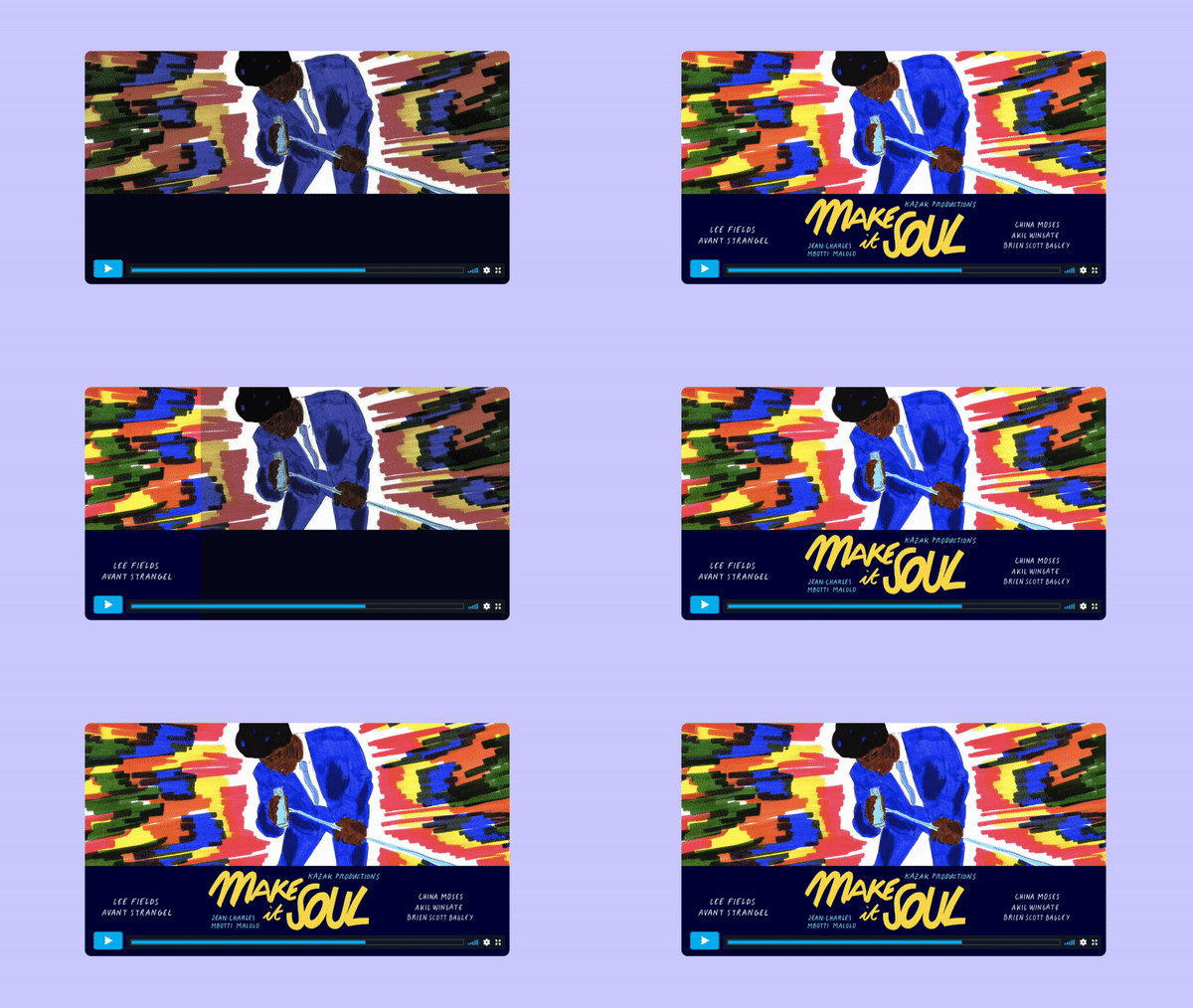
Before anyone watches your video, they’ll likely see its thumbnail first. This small preview image gives viewers an idea of what to expect and can influence whether they click to watch.
This guide breaks down what a video thumbnail is and why it’s so critical in attracting viewers. We’ll explore what thumbnails look like, how to create your own, and how to add or change thumbnails on Vimeo and YouTube.
What’s a video thumbnail?
A video thumbnail is a still image that appears before someone plays a video. It gives viewers a quick look at the subject and helps them decide whether the content is worth watching. You'll see thumbnails across video platforms and websites where creators, marketers, or content teams share videos.
Thumbnails can be frames taken directly from a video or custom images including text and graphics. In the product tutorial library of a personal electronics company, for instance, effective and eye-grabbing thumbnail examples typically feature clear shots of products in action. Custom video thumbnails generally perform better than randomly selected video frames.
What are thumbnails on YouTube?
YouTube thumbnails are the preview images that display alongside video titles on YouTube’s homepage, playlists, or search results. The thumbnail image is independent from the video title, duration label, or video icon showing a triangle play button.
YouTube and Vimeo both let users select a video frame or upload a custom thumbnail image, providing more control over how your content appears before someone clicks to watch.
How to create a video thumbnail in 4 steps
Creating a video thumbnail begins with finding an image that represents your video’s subject or purpose. You may add text and branding elements, or make thumbnail variations unique to the different platforms where you share videos.
1. Choose an image that represents the video
Watch your video and locate a moment that would make a good preview image. You might find a useful frame in the footage or decide that a separate photo would better represent the subject.
For a tutorial video about Vimeo's editor tool, for example, a screenshot showing the editing timeline and video preview would be a natural thumbnail choice. It tells viewers what the tutorial covers without needing additional explanation.
One of the most useful video thumbnail best practices is to choose a sharp image with a clear focal point. A screenshot packed with tiny details might look fine on a desktop browser, but become difficult to understand as a mobile thumbnail on smaller displays.
2. Add readable text and consistent branding where useful
A short headline can give viewers more context, particularly when the image doesn't tell the whole story. For the editor tutorial example, a clear and direct title like "How to Edit Videos" pairs well with a screenshot of the digital workspace.
You can add in-image text in your platform’s thumbnail design tool, making brand-appropriate adjustments to font, placement, and contrast to keep text from blending into the background. Consistent video branding through company logos or colors helps the audience quickly recognize your content.
Not every thumbnail needs text; if the image already effectively communicates the subject or purpose, don’t overcrowd it with unnecessary elements.
3. Check the design at a small display size
A thumbnail that looks good at full size might be harder to read when it appears in a row of videos or on a phone screen. Shrink your design to confirm its clarity as a smaller preview before exporting.
With the editing tutorial’s thumbnail, the video headline should be readable even though the smaller individual controls in the editing dashboard probably won't be. Cropping out some of the interface or making the text more prominent can help declutter the image.
4. Export for your chosen platform
Before saving your thumbnail, check the image upload requirements for your video platform of choice. Recommended dimensions and file limits differ between Vimeo and YouTube.
Vimeo recommends matching the thumbnail's dimensions to the video. A 1920 x 1080 video, for example, should use a thumbnail with the same 1920 x 1080 dimensions. Common image formats include JPG and PNG.
YouTube recommends 3840 x 2160 pixels for standard video thumbnails, using a 16:9 aspect ratio. It supports JPG and PNG images, with a file size limit of 50 MB on desktop or 2 MB on mobile.
After publishing, you can check your video's click-through rate (CTR) to see how often impressions lead to views. Thumbnails also play a role in video search optimization, since they often display alongside videos in search results.
Host and share your videos with Vimeo →
How to add or change a thumbnail on Vimeo and YouTube
You can upload a prepared thumbnail when publishing your video, or replace an existing thumbnail later. Vimeo and YouTube handle video thumbnails a little differently, so here's where to find the settings on each platform.
Add or change a thumbnail on Vimeo
Vimeo automatically chooses a frame when you upload a video, but you can replace it with another frame or your own image:
- Sign in to Vimeo, open your Video Library, and select the video you want to update.
- In the video’s settings, scroll below the player to the “Thumbnail” section.
- Choose one of the suggested thumbnails, upload your own image, or play the video and click “Select this frame” when you find a suitable moment.
- Click your preferred image in the thumbnail list to make it the active thumbnail. It’ll move to the front of the list.
You can revisit these settings whenever you want to change your videos’ thumbnails.
Add or change a thumbnail on YouTube
YouTube also lets you replace an auto-generated thumbnail with a custom image. To upload your own YouTube thumbnail, your account needs to be verified:
- Sign in to YouTube Studio and select “Content” from the left menu.
- Find the video you want to update and click its title or thumbnail.
- Under “Thumbnail” choose one of YouTube's automatically generated options or click “Upload thumbnail” to add your own image.
Click “Save” to apply the change. It may take some time for your updated thumbnail to appear across YouTube.
Customize and share your videos with Vimeo
A video’s thumbnail is often the first thing people see, but the presentation doesn't end when they press “Play.” If you're sharing a product demo on your website or sending a training video to your team, the viewing experience should feel consistent with the rest of your content.
Vimeo lets you host and share videos through an ad-free player, so viewers can watch without commercial interruptions. You can also embed videos on your website and choose thumbnails that fit the content.
With a paid Vimeo plan, you can customize the player's appearance for more control over how your videos look. The Vimeo Starter plan includes player customization. Standard and higher plans offer additional branding options, including logo use, for a clear and cohesive visual identity across your thumbnails and video player.
Explore the Vimeo video player →
FAQ
Can you use an animated GIF as a video thumbnail?
It depends on where you're uploading your video. Some platforms accept GIF files as thumbnails but display them as still images instead without their animation. Vimeo, for example, accepts GIF uploads but doesn't animate them. YouTube also accepts GIF thumbnails for standard videos, but they appear as static images.
Can you change the thumbnail on a YouTube Short?
Yes, you can select a frame from your YouTube Short using the YouTube mobile app, even after publishing the video. You can also upload a custom thumbnail image through YouTube Studio in a desktop browser if your account is verified.
What image format should you use for a video thumbnail?
JPG and PNG are good choices for most video thumbnails. JPG works well for photographs and screenshots, while PNG is useful for graphics with text or sharp edges. Before uploading, check your platform's file size limits and image requirements.